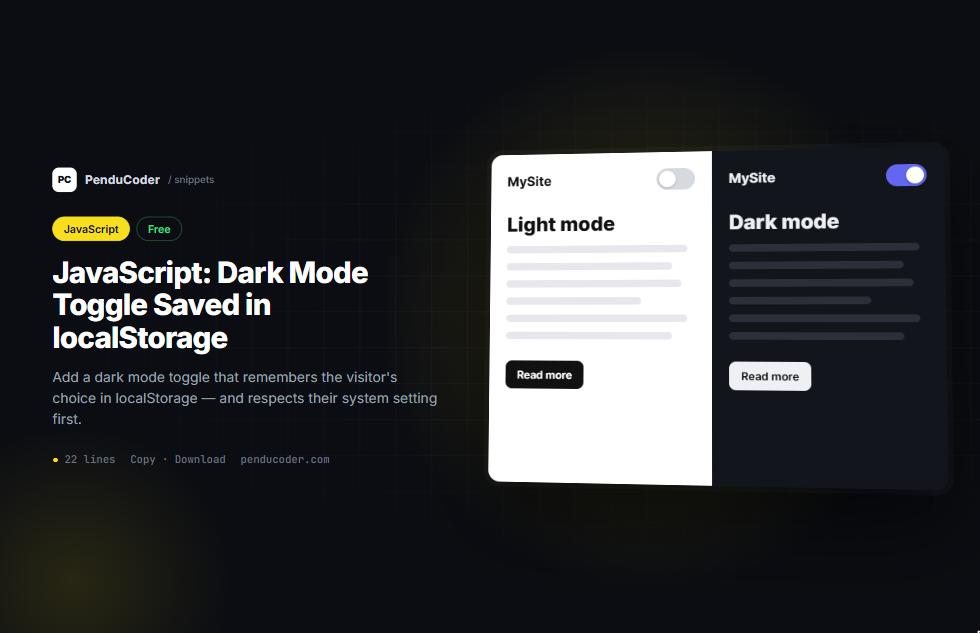
Many visitors browse with their device set to dark mode, especially at night, and they expect your site to respect it — and to remember their choice. This snippet adds a dark mode toggle with plain JavaScript that follows the visitor's system preference by default, lets them switch with a button, and saves the choice in localStorage so it persists across pages and visits.
How it works
- On page load it checks for a saved choice. If there is none, it reads the system preference with
matchMedia('(prefers-color-scheme: dark)'). - It sets a
data-theme attribute on the <html> element. - Clicking the toggle switches between light and dark, updates the attribute, saves the choice and updates the button text.
- Your CSS uses
[data-theme="dark"] selectors to change colours.
How to use it
- Define your colours as CSS custom properties (
--bg, --text) and override them in the dark theme — much easier than restyling every element. - Put the theme-setting part of the script in the
<head> so the correct theme is applied before the page paints.
Avoid the "flash" of the wrong theme
If the script runs at the end of the page, dark-mode users briefly see the light theme. A tiny inline script in the <head> that only sets the attribute fixes this.
Design tips
- Use dark grey (for example
#111–#1a1a1a) rather than pure black, and off-white text. - Check contrast for links and buttons in both themes.
- Images with white backgrounds may need slightly reduced brightness in dark mode.
FAQ
Does localStorage need a cookie banner? Storing a purely functional preference like a theme is generally considered essential, but check the rules that apply to your site.
Related: Copy to clipboard button · Reading-progress bar