Python Python Free

Bulk Image Resizer and WebP Converter (Python + Pillow)

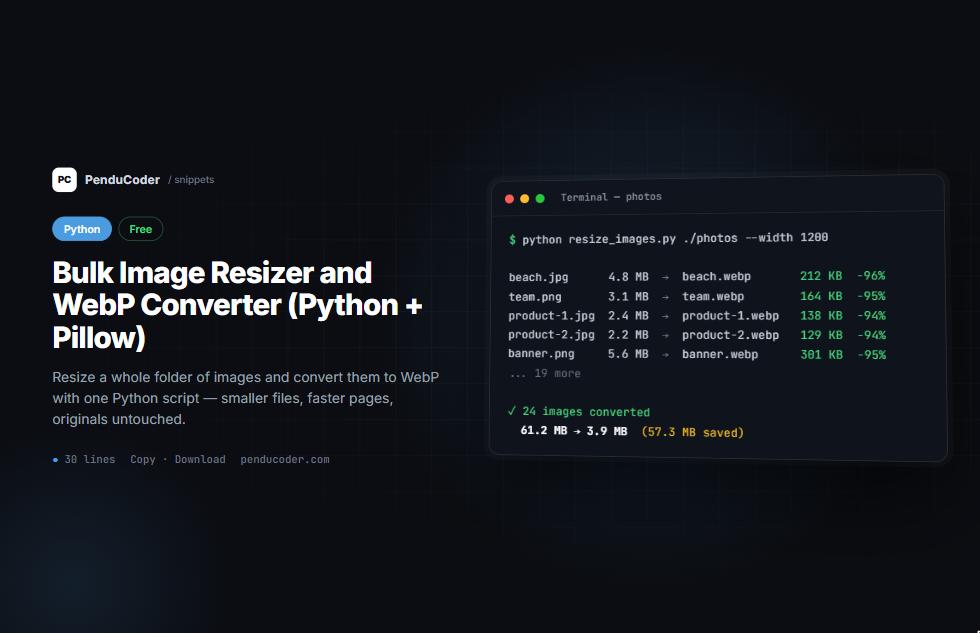
Resize a whole folder of images and convert them to WebP with one Python script — smaller files, faster pages, originals untouched.

30 lines · Updated Nov 26, 2026

Preview of Bulk Image Resizer and WebP Converter (Python + Pillow)
python-bulk-image-resizer-webp-converter.py
import sys
from pathlib import Path
from PIL import Image
SUPPORTED = {".jpg", ".jpeg", ".png", ".webp", ".bmp"}
def convert_folder(folder: Path, max_width: int) -> list:
    output = folder / "webp"
    output.mkdir(exist_ok=True)
    done = []
    for item in folder.iterdir():
        if not item.is_file() or item.suffix.lower() not in SUPPORTED:
            continue
        with Image.open(item) as img:
            if img.mode in ("RGBA", "LA", "P"):
                img = img.convert("RGB")
            if img.width > max_width:
                height = round(img.height * max_width / img.width)
                img = img.resize((max_width, height), Image.LANCZOS)
            target = output / f"{item.stem}.webp"
            img.save(target, "WEBP", quality=80)
            done.append(target.name)
    return done
if __name__ == "__main__":
    folder = Path(sys.argv[1]).expanduser() if len(sys.argv) > 1 else Path.cwd()
    max_width = int(sys.argv[2]) if len(sys.argv) > 2 else 1200
    if not folder.is_dir():
        sys.exit(f"Folder not found: {folder}")
    converted = convert_folder(folder, max_width)
    print(f"Converted {len(converted)} image(s) to WebP in {folder / 'webp'}")
    for name in converted:
        print(f"  {name}")

About this snippet

Oversized images are the number-one reason websites feel slow and score poorly on Largest Contentful Paint (LCP). This script takes a whole folder of JPG and PNG images, resizes anything wider than your limit, and saves web-ready WebP copies — typically 60–80% smaller with no visible quality loss. It is ideal before uploading product photos, blog images or a client's photo gallery.

How it works

  1. It loops over the image files in the source folder.
  2. Images wider than the maximum width are scaled down proportionally with a high-quality resampling filter.
  3. Each image is saved as WebP at a balanced quality setting into a separate output folder, so your originals stay untouched.
  4. It prints the before and after size so you can see the saving.

How to use it

  1. Install Pillow: pip install pillow.
  2. Set the input folder, output folder, maximum width and quality at the top of the script.
  3. Run it and upload the files from the output folder.

Recommended settings

  • Blog and hero images: max width 1600–1920 px, quality 75–82.
  • Product thumbnails: max width 800 px, quality 80.

Common problems

  • Phone photos come out sideways: apply ImageOps.exif_transpose() before resizing.
  • Transparent PNGs get a black background: keep RGBA mode when saving, rather than converting to RGB.

FAQ

Do all browsers support WebP? Yes, all modern browsers do. Use a <picture> element if you must support very old ones.

Related: 5 code snippets every developer needs · 10 Python automation projects

How to install

Install Pillow once with pip install Pillow, save the code as image_resizer.py, then run python image_resizer.py ./photos 800 — the folder first, the max width second (leave the width out for the 1200 px default). It handles JPG, PNG, WebP and BMP, and converts transparent images (RGBA) to normal RGB first, because WebP files saved here are standard colour images.

Share this snippet

See all
Chat with us