Python Python Free

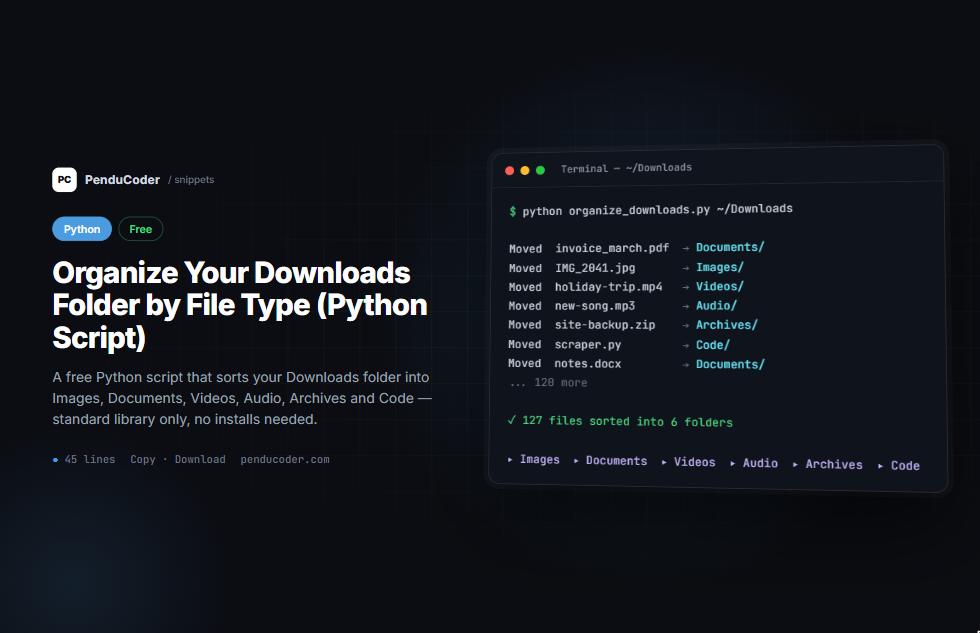
Organize Your Downloads Folder by File Type (Python Script)

A free Python script that sorts your Downloads folder into Images, Documents, Videos, Audio, Archives and Code — standard library only, no installs needed.

45 lines · Updated Nov 26, 2026

Preview of Organize Your Downloads Folder by File Type (Python Script)
python-organize-downloads-folder-by-file-type.py
import sys
from pathlib import Path
FILE_TYPES = {
    "Images":    {".jpg", ".jpeg", ".png", ".gif", ".webp", ".svg", ".bmp"},
    "Documents": {".pdf", ".doc", ".docx", ".txt", ".xls", ".xlsx", ".ppt", ".pptx", ".csv"},
    "Videos":    {".mp4", ".mkv", ".mov", ".avi", ".webm"},
    "Audio":     {".mp3", ".wav", ".ogg", ".flac"},
    "Archives":  {".zip", ".rar", ".7z", ".tar", ".gz"},
    "Code":      {".py", ".js", ".html", ".css", ".php", ".json"},
}
def category_for(path: Path) -> str:
    for category, extensions in FILE_TYPES.items():
        if path.suffix.lower() in extensions:
            return category
    return "Other"
def unique_target(folder: Path, name: str) -> Path:
    target = folder / name
    if not target.exists():
        return target
    stem, suffix = target.stem, target.suffix
    counter = 1
    while True:
        candidate = folder / f"{stem} ({counter}){suffix}"
        if not candidate.exists():
            return candidate
        counter += 1
def organize(folder: Path) -> dict:
    moved = {}
    for item in folder.iterdir():
        if not item.is_file():
            continue
        destination = folder / category_for(item)
        destination.mkdir(exist_ok=True)
        target = unique_target(destination, item.name)
        item.rename(target)
        moved[item.name] = str(target.relative_to(folder))
    return moved
if __name__ == "__main__":
    folder = Path(sys.argv[1]).expanduser() if len(sys.argv) > 1 else Path.home() / "Downloads"
    if not folder.is_dir():
        sys.exit(f"Folder not found: {folder}")
    result = organize(folder)
    print(f"Moved {len(result)} file(s) in {folder}")
    for original, new_path in result.items():
        print(f"  {original}  ->  {new_path}")

About this snippet

The Downloads folder is where files go to be forgotten: PDFs next to installers next to screenshots next to zip files. This Python script sorts every file into tidy sub-folders — Images, Documents, Archives, Video, Audio and more — based on its file extension. It uses only Python's standard library, so there is nothing to install.

How it works

  1. It scans the target folder and skips sub-folders and hidden files.
  2. Each file's extension is matched against a dictionary of categories; anything unknown goes to "Other".
  3. The destination folder is created if needed and the file is moved there. Name clashes are handled so existing files are not overwritten.

How to use it

  1. Save the script as organize.py and run python organize.py.
  2. Run it in dry-run mode first if available, and read the list of planned moves.
  3. When you are happy, run it for real.

Customize it

  • Add your own categories — for example "Invoices" for .pdf files whose names contain "invoice".
  • Point it at any folder: Desktop, a shared drive, or a client's upload folder.
  • Schedule it daily with Task Scheduler (Windows) or cron (macOS and Linux).

Common problems

  • PermissionError on Windows: the file is open in another program. Close it and run again.
  • Files still downloading: partially downloaded files (.crdownload, .part) should be skipped — add them to an ignore list.

FAQ

Can it undo the moves? Not by itself. Log each move to a file if you want an easy undo.

Related: Find and remove duplicate files · 10 Python automation projects

How to install

Save the code as organize_downloads.py and run python organize_downloads.py — with no folder given it sorts ~/Downloads. To sort another folder, pass it: python organize_downloads.py /path/to/folder. It uses only the Python standard library, so nothing needs installing. Python 3.8 or newer works.

Share this snippet

See all
Chat with us